
How Game Status Keeps Discord Players Informed
Learn how Strom Game Status monitors Minecraft, FiveM, Rust, ARK, CS2, and Garry’s Mod servers and maintains live status messages in Discord.
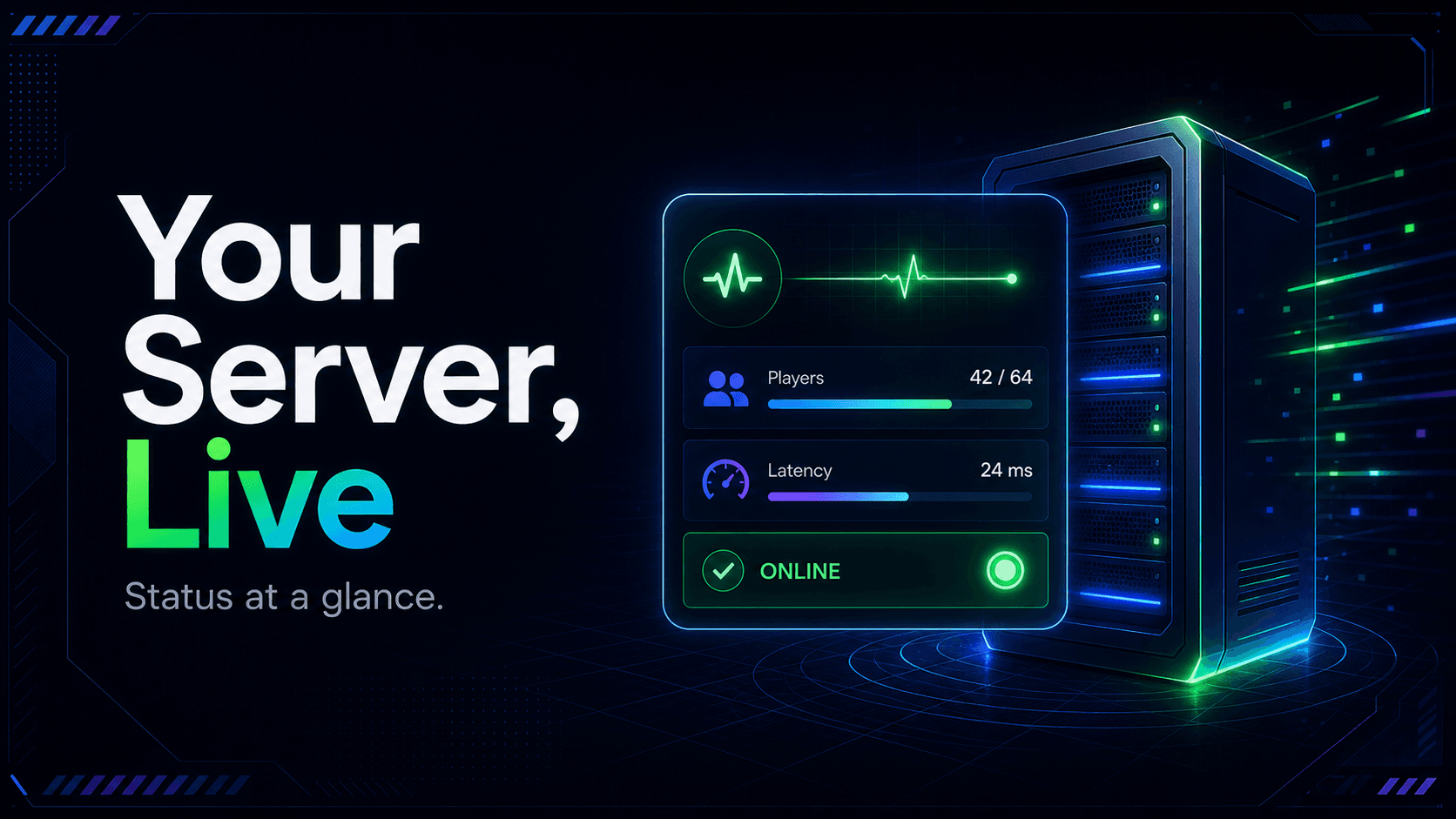
Players should not need to launch a game or search for an external status page just to learn whether a community server is online. A live status message in Discord puts that answer next to the people, events, and announcements connected to the server.
Strom's Game Status module checks a configured game server at a selected interval and maintains a Discord message with its current availability and server information. Staff can customize the presentation, pause a monitor without deleting it, and manage multiple servers from one place.
Games Strom currently supports
The current Game Status implementation supports:
- Minecraft
- FiveM
- Rust
- ARK: Survival Evolved and ARK: Survival Ascended servers using compatible queries
- Counter-Strike 2 and compatible Counter-Strike server queries
- Garry's Mod
Minecraft and FiveM have dedicated status handling. Rust, ARK, CS2, and Garry's Mod use Steam-compatible server queries. The exact fields available depend on what the game server returns.
What a status message can show
Across supported games, Strom can display information such as:
- online or offline state
- server name and address
- current and maximum player count
- response latency
- version information
- map or world information
- connection details
Minecraft can also expose details such as its MOTD, protocol, and server software. FiveM data can include its game type, map, description, tags, language, resource count, and OneSync state. Steam-query servers can provide fields such as map, connection address, version, tags, and password status when available.
Do not assume every field will always be populated. Firewalls, query configuration, server software, and temporary outages can reduce the information a host exposes.
Create a monitor from the dashboard
To create a Game Status monitor:
- Open the Strom dashboard and select the Discord server.
- Open Game Status and create a monitor.
- Enter a recognizable server name.
- Select the game type.
- Enter the public host and port.
- Choose the Discord text or announcement channel.
- Select a refresh interval.
- Customize the content and embed.
- Save the monitor and confirm its first update.
The allowed refresh intervals are 1, 3, 5, or 10 minutes. A shorter interval gives members fresher data but is not always necessary. For most community servers, 3 or 5 minutes is a useful balance.
Default ports are available when a custom port is not required: Minecraft commonly uses 25565, FiveM uses 30120, and the Steam-query integrations default to 27015. Use the actual query port configured by your host, which may differ from the gameplay port.
FiveM setup requires a valid public IPv4 address in Strom's current dashboard workflow.
Create and manage monitors from Discord
Staff with Manage Server can use the Game Status command group:
| Command | Purpose |
|---|---|
/gamestatus add |
Create a monitor with a name, game, host, channel, interval, and optional port |
/gamestatus list |
View configured monitors and their IDs |
/gamestatus toggle <id> |
Disable or re-enable a monitor without deleting it |
/gamestatus remove <id> |
Permanently remove a monitor |
Equivalent prefix commands are available where prefix commands are enabled, such as !gamestatus list and !gamestatus toggle <id>.
The list command is the safest place to copy a monitor ID before toggling or removing it. IDs distinguish configurations even when several monitored servers have similar names.
Customize the status for your community
Strom supports custom message content and embeds with replacement variables. The variables differ by game type because a Minecraft server and a FiveM server do not return the same data.
A clear status embed should prioritize:
- online or offline state
- server name
- players online and capacity
- connection address
- current map, world, or version when useful
Place optional technical fields below those basics. Players usually want to know “Can I join?” before they want protocol or tag details.
Keep the status in a stable channel such as #server-status. Strom updates the configured status flow repeatedly, so members always know where to look instead of searching through a stream of manual announcements.
Choose the right update interval
The monitor interval determines how often Strom queues a refresh:
| Interval | Best fit |
|---|---|
| 1 minute | Busy servers where player availability changes quickly |
| 3 minutes | Active community servers and event sessions |
| 5 minutes | General-purpose monitoring |
| 10 minutes | Lower-traffic or informational status channels |
An “offline” result is a snapshot of the latest query. If the game server is restarting or the network briefly fails, wait for the next refresh before treating it as a prolonged outage.
Permissions and network requirements
The staff member configuring Game Status needs Manage Server. In the destination channel, Strom needs permission to:
- view the channel
- send messages
- embed links
The game server must also be publicly reachable from Strom's status service. Private LAN addresses, loopback hosts, blocked query ports, and firewall rules can prevent a valid server from being checked.
Expose only the required game or query service. Do not weaken firewall rules broadly just to make a status check work.
Plan limits and multiple servers
Game Status is plan-gated. Minecraft and FiveM can have their own availability controls, while the Steam-query game types are governed by overall module access and the server's monitor quota.
You can monitor multiple game servers when the plan quota allows it. This is useful for networks with survival and creative Minecraft servers, regional game hosts, staging environments, or separate event servers.
Use distinct monitor names and channels when players could confuse one server for another.
Common game-status problems
The server always appears offline
Confirm the host, query port, and game type. Then verify the server is publicly reachable and its firewall allows the relevant status or Steam query traffic. Some hosting providers use a query port different from the connection port.
The player count or map is missing
Strom can only display data returned by the game server. Review the server's query settings, privacy options, proxy configuration, and host documentation.
No message appears in Discord
Check that the monitor is enabled, the destination channel still exists, and Strom can view it, send messages, and embed links. Also confirm the server has access to the module under its current plan.
A monitor cannot be created
Look for an existing monitor with the same host and port, confirm the game type and interval, and check the server's monitor quota. For FiveM, use a valid IPv4 host where required.
The status updates too slowly
Edit the monitor and choose a shorter supported interval. Remember that a refresh is a scheduled check, so network response and message processing can add a small amount of time.
Give players one dependable answer
A status channel reduces repeated “Is the server up?” questions and helps members decide when to join. It also gives staff a visible signal when a server restarts or stops answering queries.
With Strom, one configured monitor can keep that information current all day. Choose the correct game and query port, present the most useful fields first, and place the message where every player knows to find it.